Before you start
An active proxy connection with its assigned protocol, hostname, port, full username and password. Copy those fields from your account or activation details. A browser profile does not create proxy credentials.
A browser supported by the current ZeroOmega release. Install from the maintainer’s project links. Existing SwitchyOmega screenshots elsewhere may show older labels or unsupported Chrome installation steps.
SwitchyOmega and current browsers
The original SwitchyOmega 2 extension is no longer maintained and does not work in current Chrome. This walkthrough uses ZeroOmega, which keeps the familiar proxy-profile workflow.
- Maintained installation path
- Use the browser-store links published by the ZeroOmega project.
- Named connection profiles
- Save a proxy hostname, port and login in a named profile.
- Explicit profile switching
- Select the saved profile from the extension menu when you need that connection.
- Browser protocol limits
- This recipe uses HTTP proxy authentication. Chromium does not support authenticated SOCKS5 proxies in extensions.
1. Install ZeroOmega
Open the ZeroOmega project and use its Chrome, Edge or Firefox store link for your browser. Do not install the abandoned original Chrome extension.
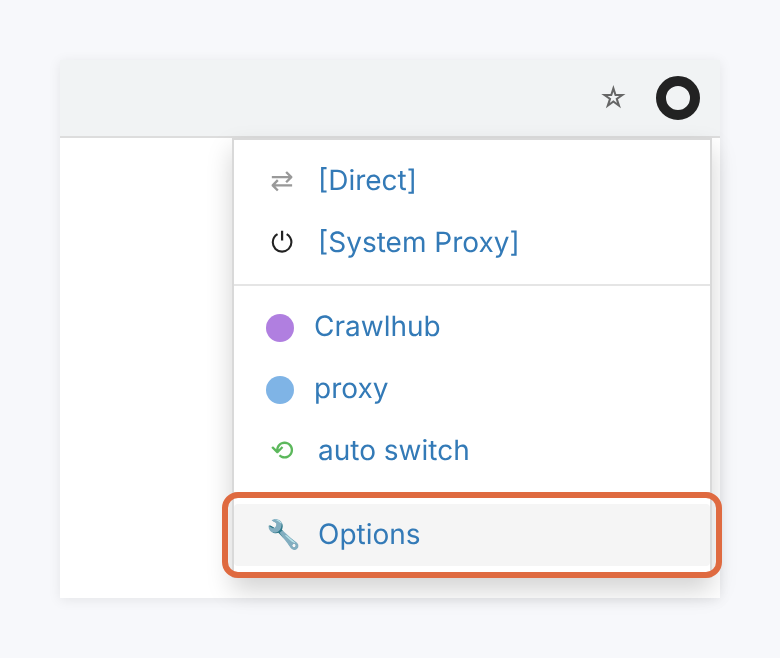
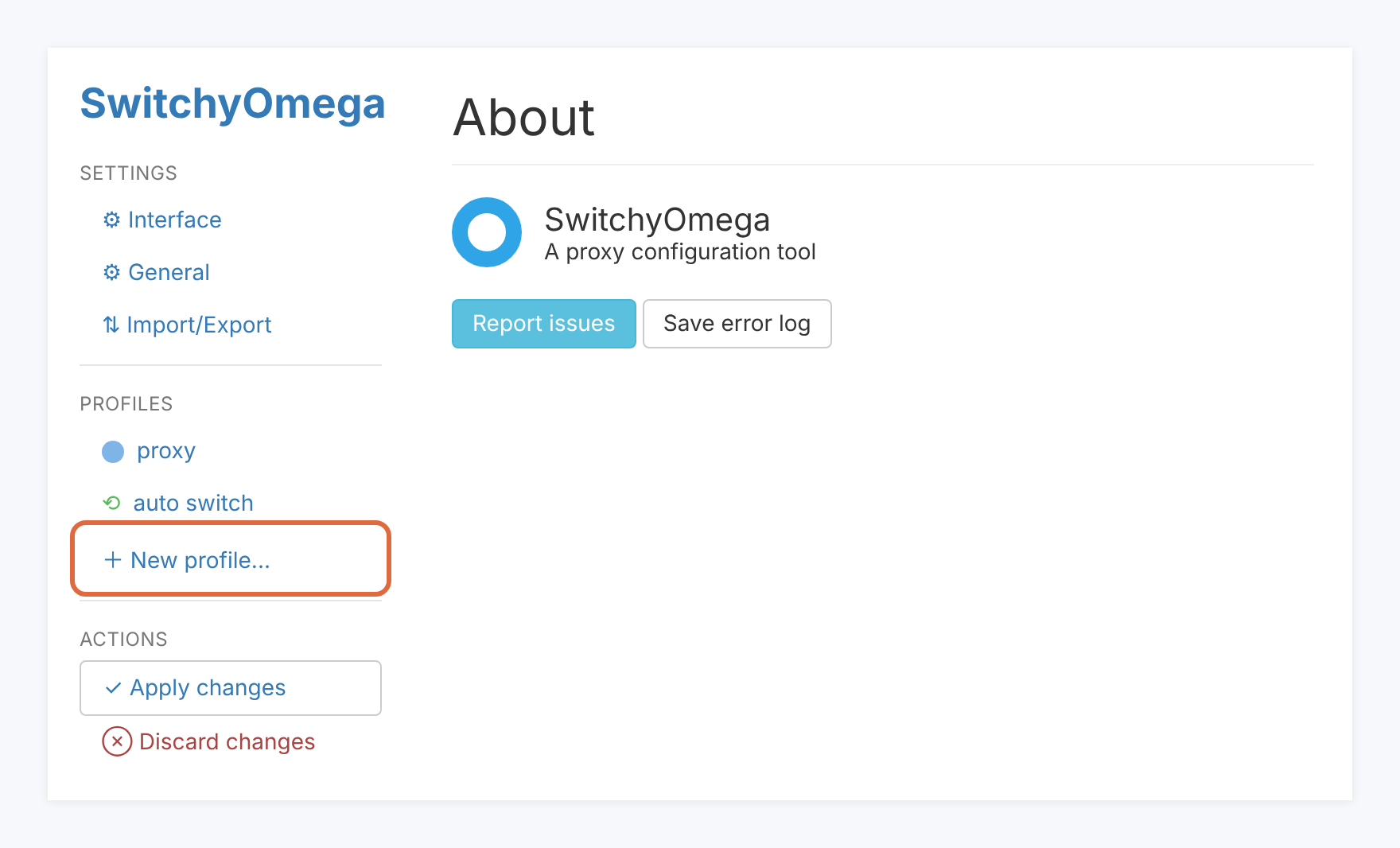
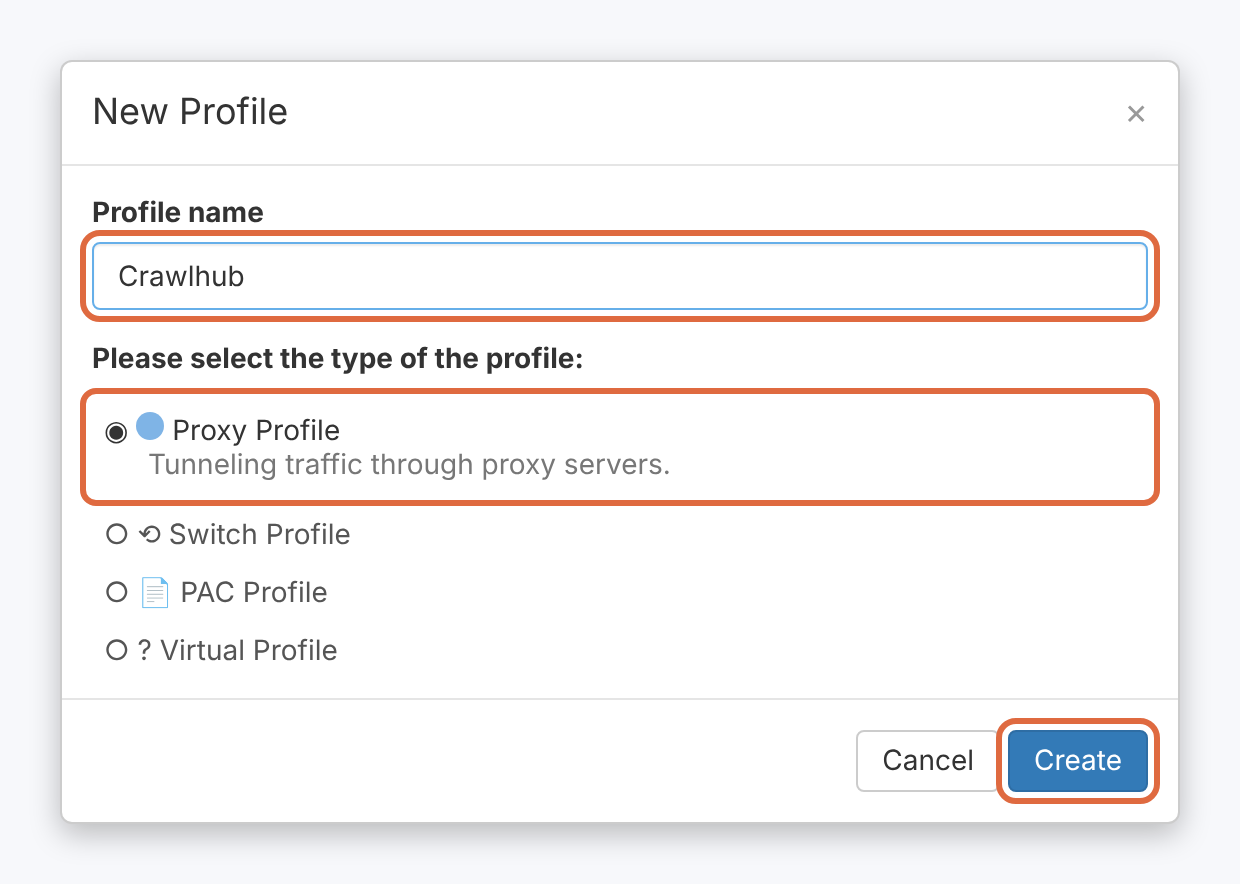
Open the extension menu, then Options. Create a New profile, choose Proxy Profile and give it a name such as Crawlhub.
2. Enter the assigned proxy
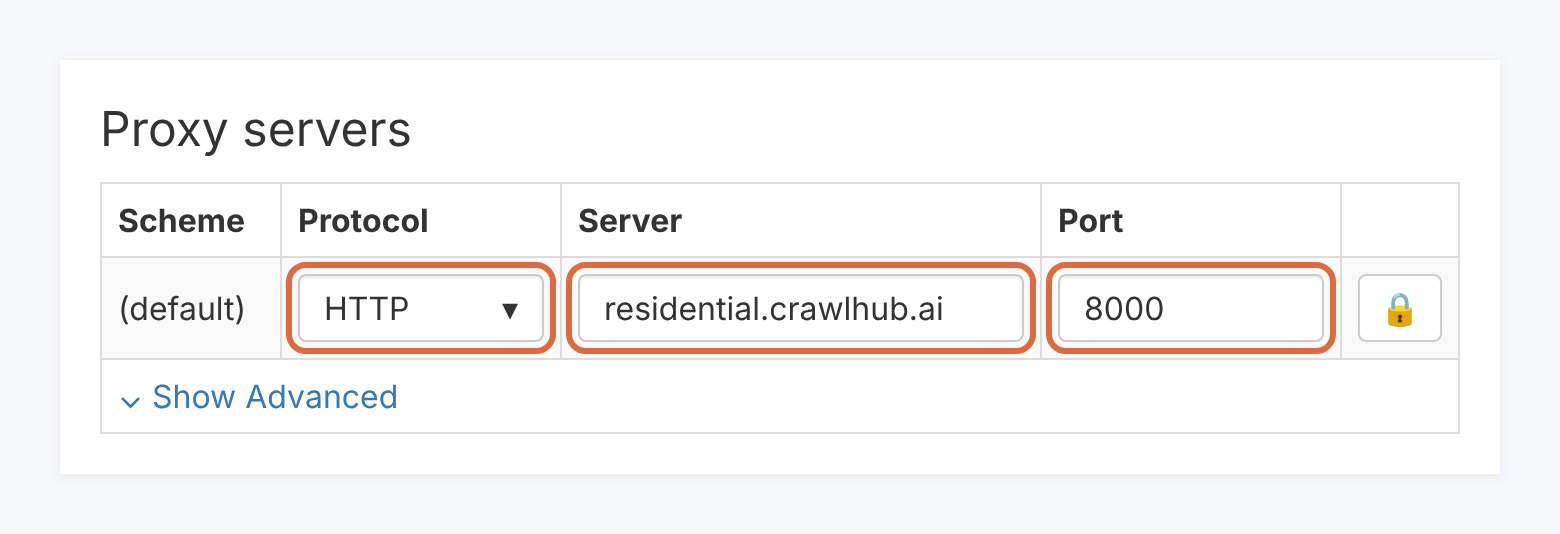
For this HTTP-authenticated setup, select HTTP for an HTTP proxy endpoint. Select HTTPS only when your assigned proxy transport itself uses TLS; an HTTPS destination page alone is not a reason to choose HTTPS here.
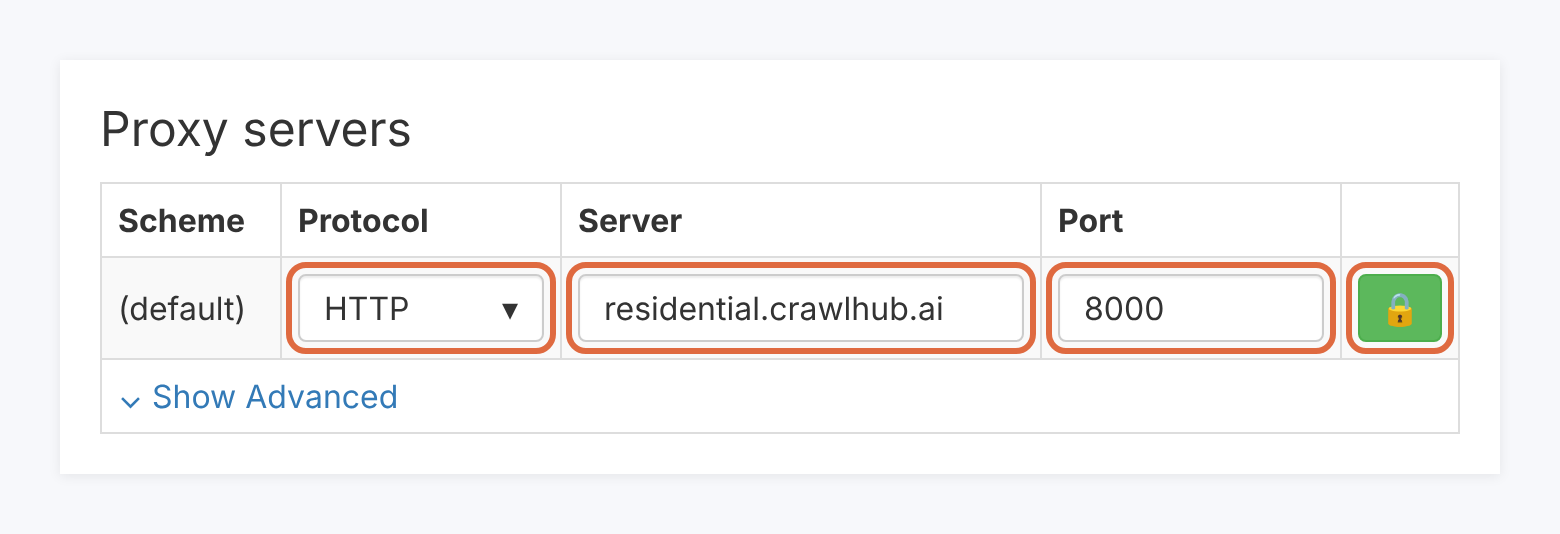
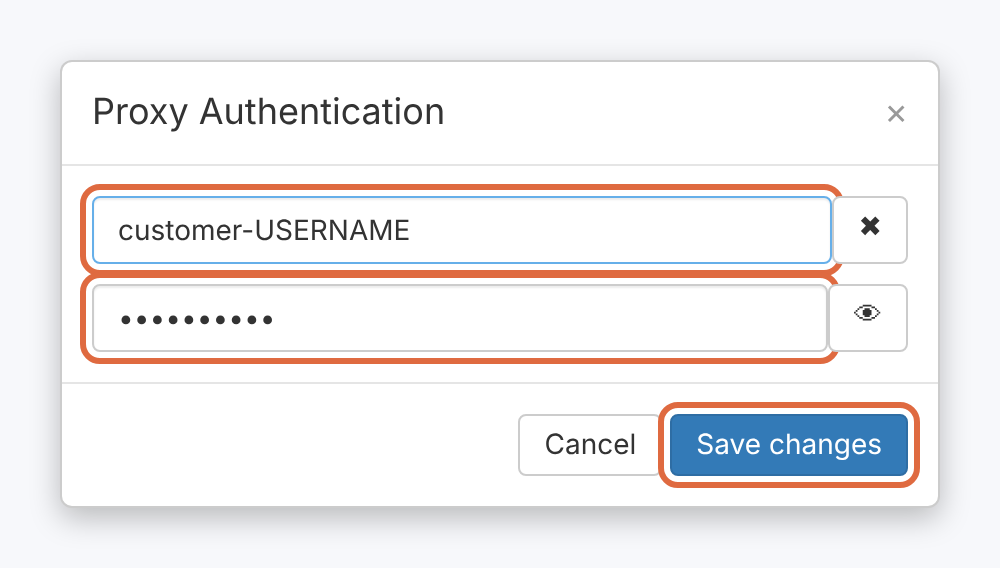
Enter the hostname and port supplied for that endpoint. Use the authentication control, commonly the lock icon, to save the full proxy username and password.
Use any assigned location or session configuration exactly as supplied. Do not assume a customer- prefix, an incrementing port-to-IP mapping or a targeting suffix from a different provider.
Enter raw credentials in separate username and password fields. URL-encode them only when a client requires a proxy URL; do not paste an encoded password into a normal password field.
The new Crawlhub v1 username specification is documented in the proxy parameter reference. Its planned gateway naming is separate from the live connection details assigned to an activated account.
| Connection field | What to enter |
|---|---|
| Protocol | Protocol assigned to this proxy endpoint |
| Hostname | Assigned proxy hostname, without a URL path |
| Port | Assigned port for the selected protocol |
| Username | Full assigned username, including configured session or location values |
| Password | Proxy password, not the browser-tool account password |
3. Apply and activate the profile
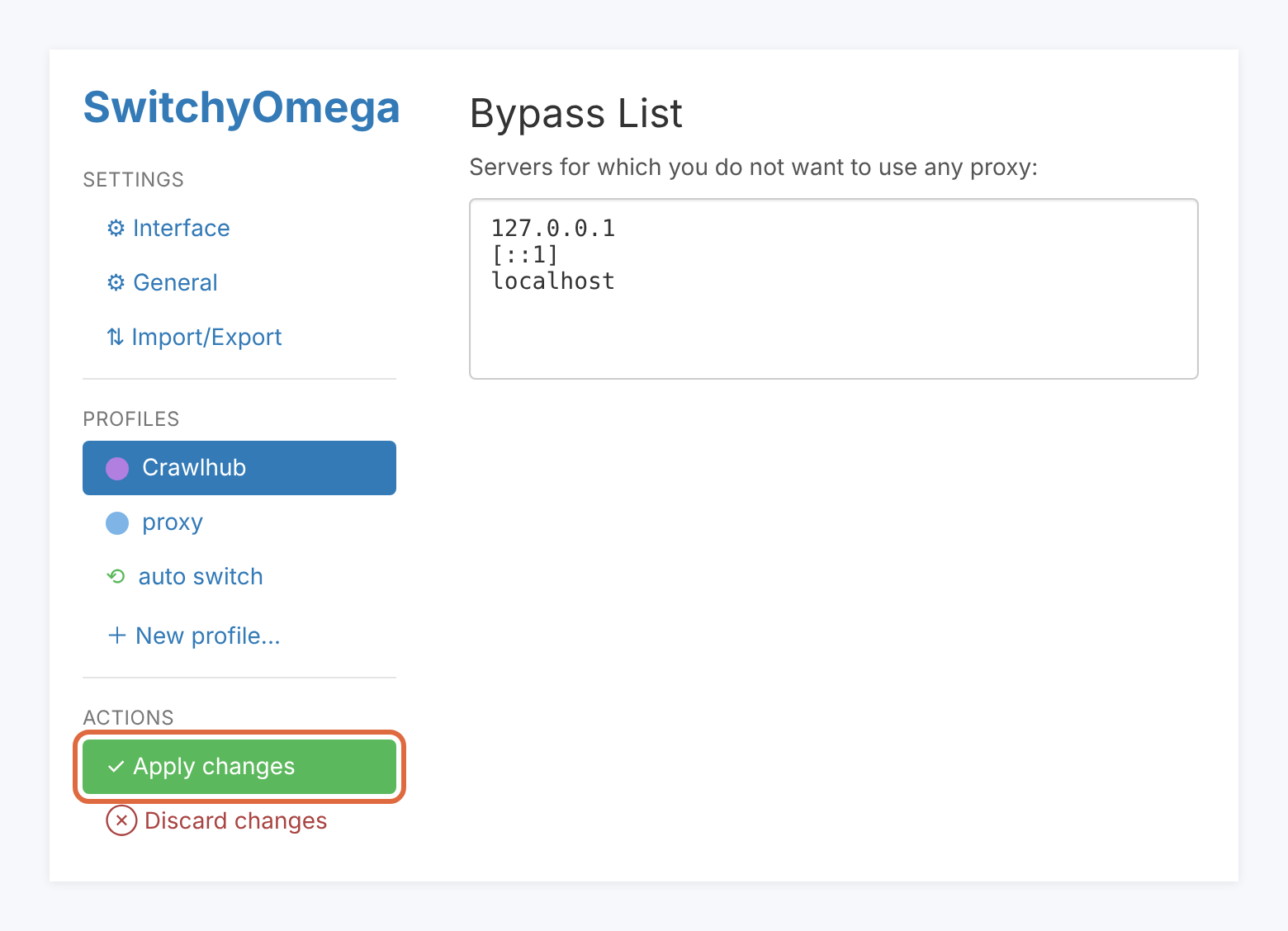
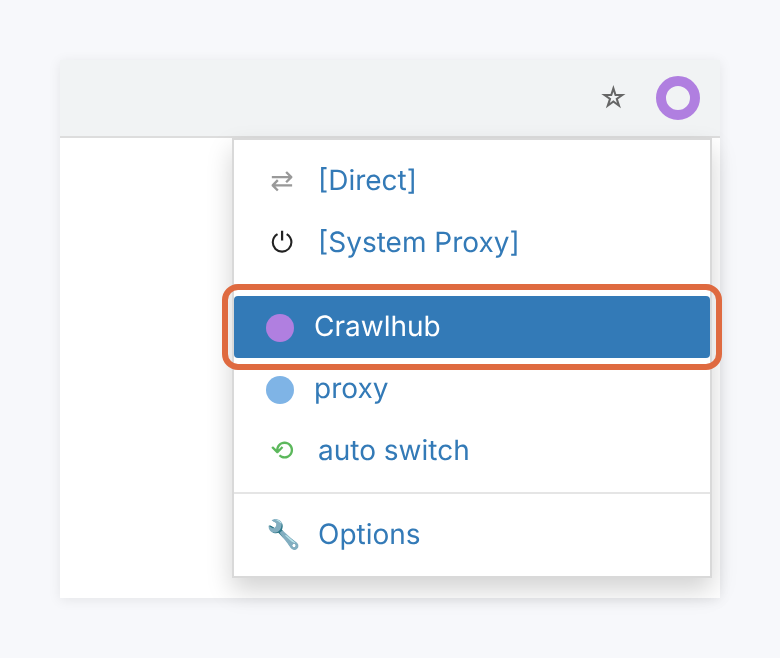
Save the authentication values and apply the profile changes. Open the extension menu and choose your Crawlhub profile.
Check that no other extension or enterprise policy has taken control of the browser’s proxy settings. Selecting Direct or System Proxy changes the route again.
4. Verify the browser route
Open an IP-check page in the same browser and confirm the reported address and location. Recheck after changing profiles.
If authentication fails, verify the assigned fields and use HTTP/HTTPS proxy authentication on Chromium. SOCKS5 password authentication is a browser capability issue; installing a different Chromium extension does not remove that limit.
Troubleshooting
Original extension is disabled
Use the maintained ZeroOmega fork from its project links. The original SwitchyOmega Chrome installation is obsolete.
Proxy settings are ignored
Check which extension or managed browser policy currently controls proxy settings, then select the intended profile.
SOCKS5 login fails on Chromium
Use an assigned HTTP/HTTPS proxy endpoint for password authentication. Confirm another browser’s support before choosing SOCKS5.